3D Website
How to Build a Cinematic 3D Scroll Website With Free AI Tools (No Code)
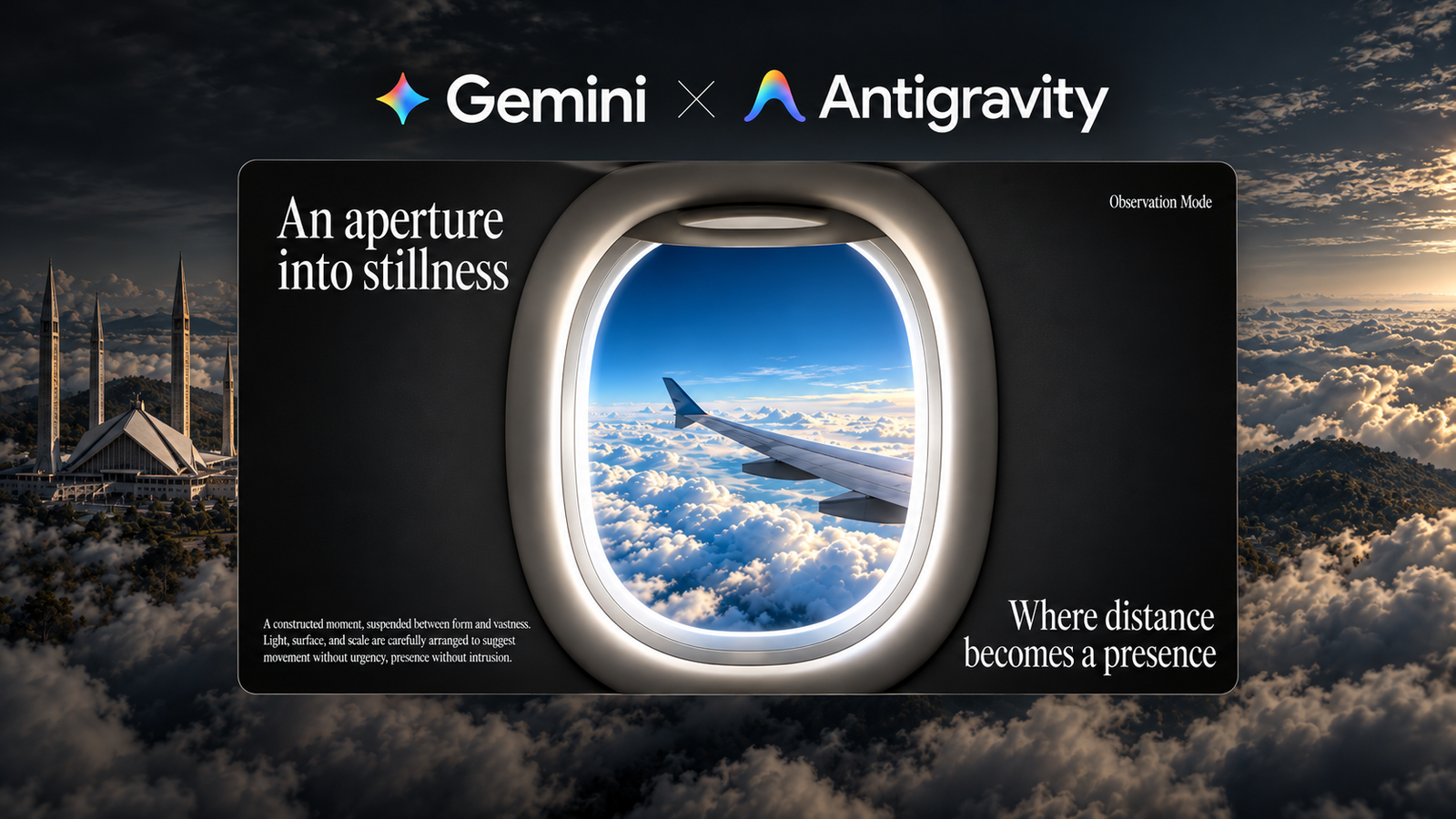
Scroll, and you fly out of a plane window, through the clouds, all the way to Faisal Mosque. Websites like this usually come from agencies that charge thousands of dollars. In this guide I’ll show you how I built one step by step, using only free AI tools and without writing a single line of code.

What you’ll build
A one-page scroll animation website where scrolling controls a video. Scroll down and the camera leaves the plane, passes through the window, moves into the clouds and reveals the mosque. Scroll back up and it all plays in reverse. Headlines fade in over the video, and the page ends with an editorial section and a footer.
The 4 free AI tools you need
- ChatGPT to generate the images
- Google Flow to turn the images into video
- Clipchamp to join and export the clips
- Antigravity (or Claude Code, or Codex) to build the website
Step 1: Create three images with ChatGPT
The animation needs three frames: a first frame, a middle frame and a last frame. Open ChatGPT and generate each one with a detailed prompt.
- Plane window: the view from inside a plane, looking out of the window at the clouds.
- Clouds: nothing but clouds, as if the camera is flying right through them.
- Your landmark: I used Faisal Mosque in Islamabad, floating above the clouds.

Image 1, the first frame: the plane window.
Why the middle image matters: free AI video tools struggle to jump straight from a plane window to a building. The clouds image gives them an easy in-between step, so both clips look smooth.
Step 2: Turn the images into video with Google Flow
Open Google Flow, start a new project and upload all three images. Use the frames to video option to make two clips:
- Clip 1: the plane window as the start frame, the clouds as the end frame.
- Clip 2: the clouds as the start frame, the mosque as the end frame.
Paste a short prompt for each clip that describes one smooth, slow camera move. Expect to generate the second clip a few times. Free AI video isn’t perfect, and sometimes the building just pops into the frame. When you get a smooth one, download both clips in 1080p.

Step 3: Join the clips in Clipchamp
Clipchamp is a free video editor that runs in your browser. Create a new video, import both clips and place them one after the other on the timeline. Trim the ends down to about 12 seconds in total, which is plenty for a scroll animation. Then add a transition between the clips and export in 1080p. This one video becomes the whole background of your website.
Step 4: Build the website with an AI coding agent
I used Antigravity because it’s free. The free plan includes Gemini Flash, which is enough for this build. Any AI coding agent works the same way.
- Create a new project folder and select it in Antigravity.
- Copy your exported video into the folder.
- Paste the website prompt. It tells the agent exactly how the scroll animation, the sections and the video should work. Add one line at the end: the video is in the project folder.
- Send it, allow folder access when asked, and let the agent work for a few minutes.
Want a different design? Search Pinterest for website designs, save one you like, and give it to your coding agent as a reference. It will build the layout in that style while the animated background still plays behind it.
Step 5: Run it and see the result
Open a terminal in your project folder and run npm run dev. You’ll get a local link. Open it in your browser and scroll: the camera leaves the plane, moves through the clouds, and the mosque rises above them.
The trick behind scroll animation websites
The website doesn’t actually play the video. It moves through the video frame by frame as you scroll, so the animation follows your scroll speed exactly, forwards and backwards. That’s why it feels cinematic and responsive at the same time. The video is encoded with a keyframe every few frames so scrolling backwards stays smooth.
Make it yours
To make the website your own, change one thing: the landmark in the third image prompt. Use your city, a famous building, or your client’s product, and keep everything else the same so the colours and light still match. Websites like this are a strong offer for local businesses, travel brands and portfolios.
Frequently asked questions
Do I need to know how to code?
No. The AI coding agent writes all the code from one prompt. You only copy, paste and run one command.
Are these tools really free?
Each tool has a free plan. Google Flow gives you free credits to start, and Antigravity’s free plan includes Gemini Flash, which is enough for this build.
How long does it take?
Most of the time goes into generating the images and getting a smooth video clip. The website itself is built by the AI in a few minutes.
Can I use my own landmark or product?
Yes. Change the landmark in the third image prompt and keep the rest of the prompts the same.
Get every prompt for free
I put every prompt I used into one free guide: the three image prompts, both Google Flow video prompts and the complete website prompt.
Download the free prompt pack →
If you build your own version, tag me @heyyali. I’d love to see which landmark you put above the clouds.